Projects and Collaboration
Sharing studies with colleagues through projects: invitations, roles, access to study data and encryption keys, and project tasks.
Collaboration in SMAAT is organised in projects. A project is a workspace that groups studies, members, tasks and files. Studies linked to a project are shared with the project's members according to their role. Members only read a shared study; changes to its design, status and data remain with the study's author.
Open My Projects in the left sidebar (/dashboard/projects) to see your projects and pending invitations. New project creates a project with a title and description. The number of projects you can create depends on your plan: one on Free, two on Basic, three on Pro and no limit on Team.
Plan requirements
Whether members can open a shared study depends on the plan of the study's author:
- Free: no collaborators.
- Basic and Pro: view-only collaboration. Every member, whatever the role, can see the study design only.
- Team: role-based collaboration. The role decides which parts of the study a member can see (see Roles).
The plan of the project author also limits how many members a project can have: none on Free, one on Basic, three on Pro and no limit on Team. Pending invitations count, and the limit applies whoever sends the invitation. The Team tab shows how many places are used. Inside a shared study, plan-dependent features (export formats, charts) follow the plan of the study's author, whatever the member's own plan.
Inviting collaborators
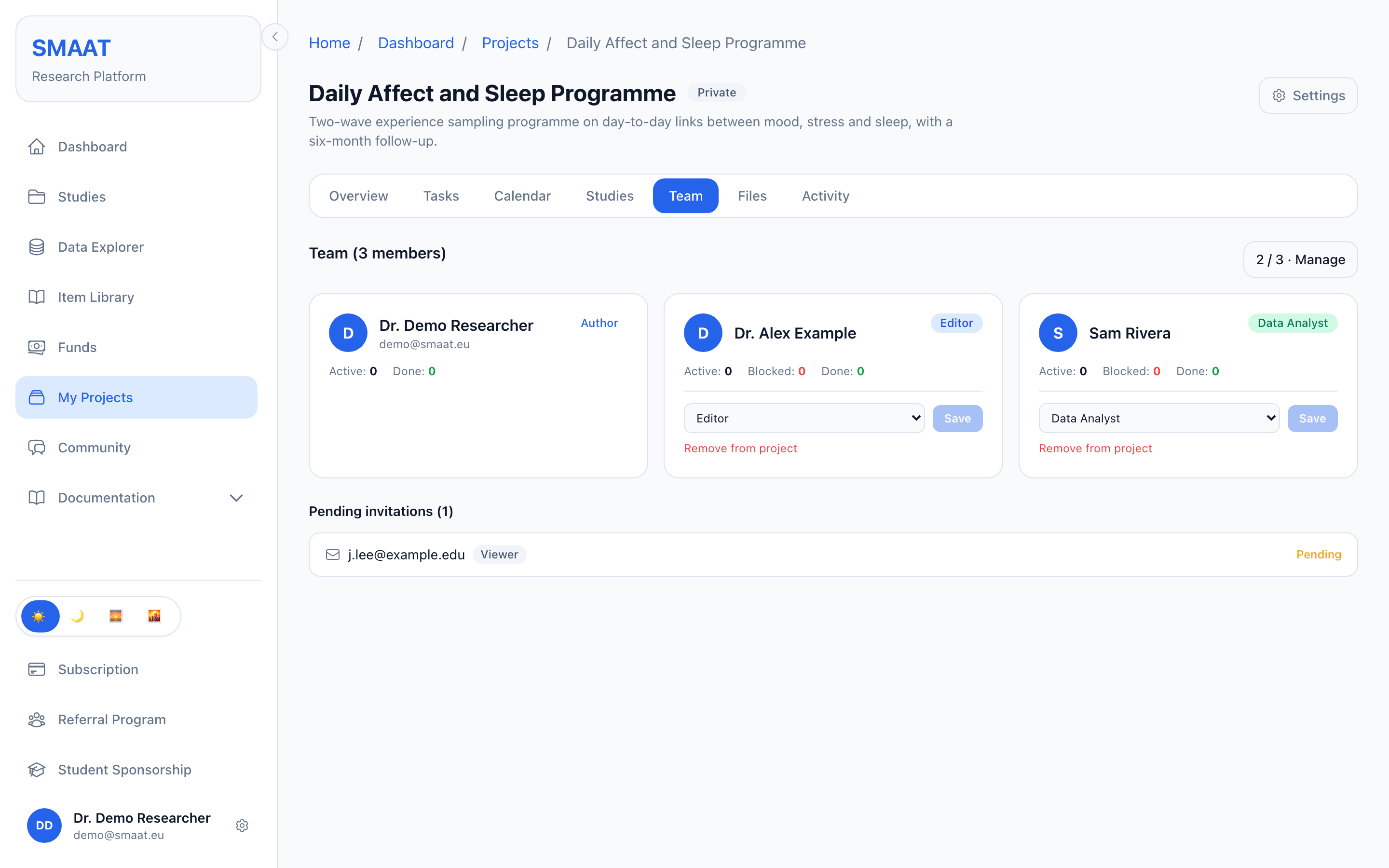
- Open the project and select the Team tab, then the button with the member count and Manage (or Manage team).
- Under Invite by email, enter the colleague's email address, choose a role and send the invitation.
- The colleague signs in to SMAAT with that email address. Once the address is verified, the invitation appears under Project invitations on the My Projects page, with Accept and Decline.
The project author and members with the Owner or Editor role can invite members, change the role of other members and remove members (Remove from project). Only the author and Owners can give the Owner role. No one can change their own role.
Roles
The study access listed here applies to studies whose author has the Team plan.
| Role | In the project | In linked studies |
|---|---|---|
| Owner | Manages tasks, files and the team, including inviting other owners. | Design, participants and data |
| Editor | Manages tasks, files and the team; cannot invite owners. | Design |
| Viewer | Reads all project tabs. | Design |
| Data Analyst | Reads all project tabs. | Design and data |
| Participant Manager | Reads all project tabs. | Design and participants |
What each kind of access shows in a study
| Design | Overview and Notifications tabs, and the study design through View Design. |
| Participants | Participants, Invitations and Messages tabs. |
| Data | Data, Sensors, Quality and Burden tabs, including the exports. |
A member opens a shared study from the project's Studies tab. The study header shows a Read-only badge, and the View Design button opens the Study Builder without the option to save. The Announcements tab is shown to the author only. Members with data access can view and export data, but only the author can exclude datasets from analysis or delete datasets and sensor files.
Linking studies to a project
On the project's Studies tab, the author, Owners and Editors can select Link existing study or create a New study. Only studies that you created yourself can be linked. Selecting a linked study opens a panel with links to the Study Builder, Participants, the data and the study page, the tasks linked to the study and the option to unlink it.
Who can decrypt this data
Data of a study with end-to-end encryption can be read only by accounts that hold the study key. The author manages this in the Study Builder under Settings → Security, in the panel Who can decrypt this data. Only members whose role includes the study data receive the key: Owner and Data Analyst, when the author has the Team plan. The panel lists the accepted members of the projects the study is linked to, with one of these states:
- Has access, with a Revoke button;
- Share access, for an Owner or Data Analyst who has set up an encryption vault but has no access yet;
- “Role has no data access”, for Viewers, Editors and Participant Managers, and for every member when the author's plan is not Team;
- “Hasn't set up encryption”, for a member without an encryption vault. The member sets one up in the account settings (see Account, security and billing).
Sharing and revoking require the author's encryption vault to be unlocked (Unlock vault). While the vault is unlocked, the panel shares the key automatically with Owners and Data Analysts who have a vault and no access yet. Sharing wraps the study key to the member's account, so no key files are exchanged. The member then decrypts the data on the study's Data tab with Decrypt data (see Decrypting encrypted data).
Tasks, calendar, files and activity
The other project tabs support planning. The author, Owners and Editors can create and change content; other members can read it and comment on tasks.
- Overview: overall progress, task counts by status, overdue tasks, tasks due within seven days, and the milestones with their target dates. The author, Owners and Editors add a milestone with Add milestone: a title, an optional target date and an optional research phase.
- Tasks: a board or list of tasks with the statuses To Do, In Progress, Blocked and Done. A task has a title, details, priority, research phase (from Idea to Reporting), assignees, a due date, an optional linked study and comments.
- Calendar: tasks shown on their due dates.
- Files: uploads of any file type up to 100 MB, optionally tagged with a phase, with download and delete.
- Activity: a log of changes and comments, filterable by type. Clear all deletes the log after typing DELETE.
The project's author can delete it under the project's Settings → Delete project, after typing the project title. This deletes its tasks, milestones, files, team and activity; its studies stay and are only removed from the project.