Data Overview
Exporting, inspecting and summarising survey responses on the study's Data tab.
Open a study and select the Data tab in the row of study sections (Overview, Participants, Invitations, Notifications, Announcements, Data, Sensors, Quality, Burden, Messages). The page is headed Study Data. Each submitted survey is stored as one dataset.
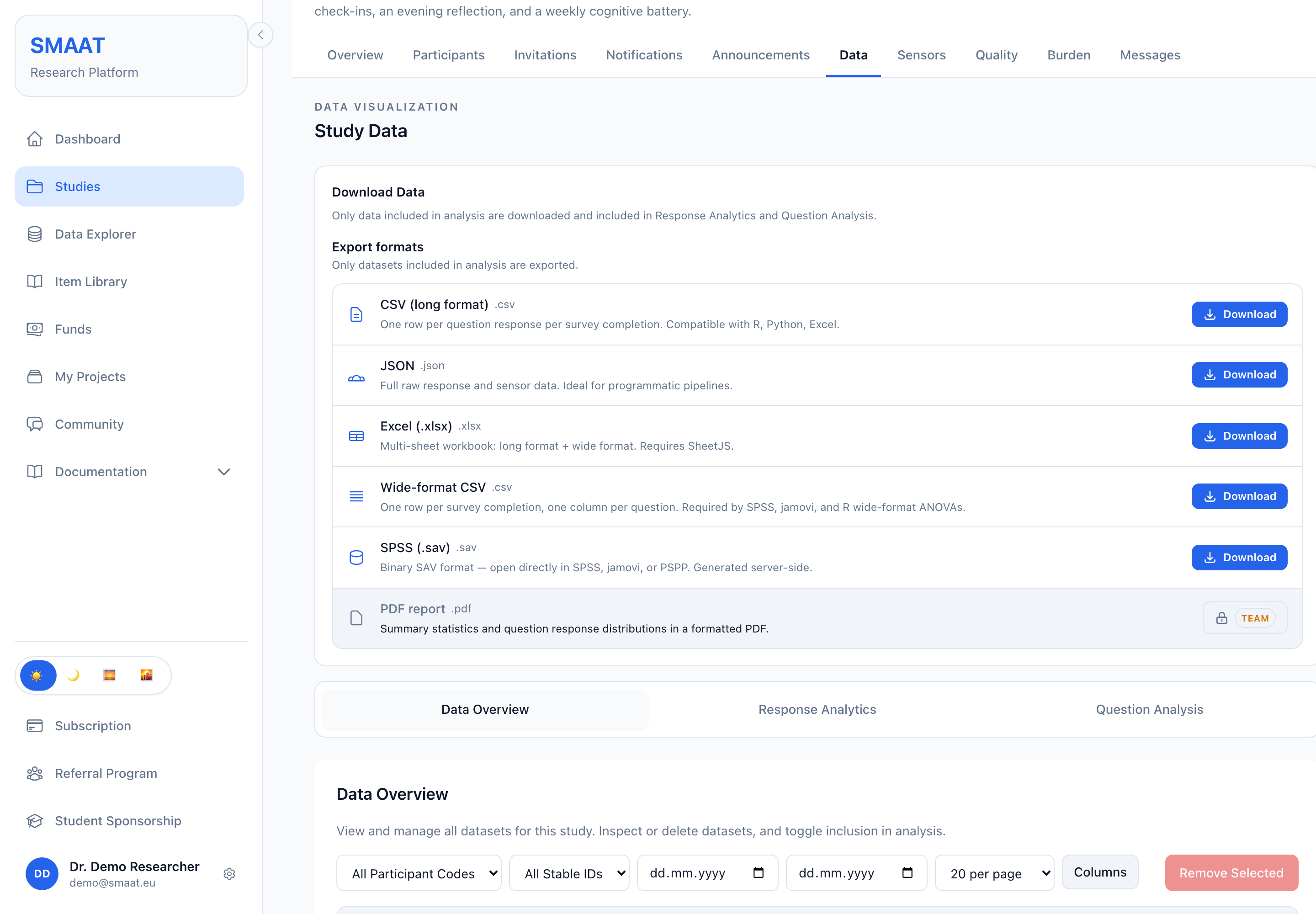
The Download Data card at the top holds the decryption controls and the export formats. Below it, three tabs show the datasets: Data Overview, Response Analytics and Question Analysis. Only datasets marked Include in Analysis are exported and counted in the two analysis tabs.
Plan-dependent features on this page follow the plan of the study's author. Project collaborators with data access therefore see the same formats and charts as the author (see Projects and collaboration). Files recorded in the background, such as GPS and health data, are on the Sensors tab and are described in Background Sensor Data.
Export formats
The Export formats list in the Download Data card has one Download button per format. A format that the author's plan does not include shows a lock and the name of the required plan instead, and links to the pricing page.
| Format | Content | Plan |
|---|---|---|
CSV (long format)smaat_study_<studyId>.csv | One row per answered question per survey submission, with all metadata columns listed below. | All plans |
JSONsmaat_study_<studyId>.json | One object per submission: participant, survey and compliance fields, the raw responses and the sensor data recorded during the survey. | Basic |
Excel (.xlsx)smaat_study_<studyId>.xlsx | A workbook with a long-format sheet (Responses) and a wide-format sheet (Wide format). | Basic |
Wide-format CSVsmaat_study_<studyId>_wide.csv | One row per submission and one column per question, the layout used for repeated-measures analyses in SPSS, jamovi or R. | Pro |
SPSS (.sav)smaat_study_<studyId>.sav | The wide-format table as an SPSS system file, which SPSS, jamovi and PSPP can open. | Pro |
PDF reportstudy_<studyId>_report.pdf | A summary table (total responses, unique participants, overall response rate, unprompted responses, average responses per day, most active day) and a table of each question with its most frequent answers. | Team |
All formats except SPSS are generated in your browser. For the SPSS file, the browser sends the wide-format table to the SMAAT web server, which converts it and returns the .sav file without storing it. The server converts only for signed-in researchers with access to the study's data, for files of up to 64 MB and 5,000,000 cells (rows × columns). If decrypted data must not be transmitted, export a CSV file and convert it locally.
In the wide formats each question is one column, headed by the question text. When two questions have the same text, for example an item reused in two surveys, the survey title is added in brackets. Swipe and tap questions get one column per item, cognitive tasks one column each for accuracy, median reaction time and status, and drawings one column each for mean, slope, area under the curve and coverage. In the SPSS file the metadata variables have fixed short names (for example PCODE, PROMPT, DUR_S), the questions are named Q1, Q2 and so on with the column heading as the variable label, and slider, Likert and number questions are numeric variables. In a numeric variable, a cell that holds no number (for example a skipped question) is system-missing. Responses that are still encrypted are left out of the SPSS file, and the export reports how many. Text longer than 255 bytes is stored as an SPSS long string of up to 32,767 bytes; SPSS, PSPP, jamovi and R's haven package read it as one variable, while R's foreign package shows its 255-byte parts as consecutive variables.
Encrypted responses that have not been decrypted are exported without their answers: the long-format CSV shows Encrypted Data in the Response column and the wide formats show Encrypted in each question column. Decrypt the data first (see Decrypting encrypted data).
Columns of the long-format export
In the long-format CSV and the Responses sheet of the Excel workbook, each row is one answer. The submission-level columns are repeated on every row of that submission.
| Group | Columns |
|---|---|
| Participant | ParticipantCode, StableId, GroupCodeThe stable ID stays the same for a person across studies; the group code is the arm assigned by group assignment. |
| Submission | SurveyTitle, SubmissionNumber, StartedAt, CompletedAt, SurveyDurationS, ServerReceivedAt, PromptTypeStartedAt and CompletedAt come from the device clock; ServerReceivedAt is the time the server recorded the response. SurveyDurationS is computed from the two device times. |
| Compliance | ResponseTimeS, Complied, ComplianceWindowS, CompletedQuestions, TotalQuestions, DataTruncatedResponseTimeS is the time from sending the notification to the server receiving the response. Complied states whether that time was within the response window of the notification schedule. |
| Survey version and device | SurveyVersion, Platform, OSVersion, DeviceModel, Manufacturer, AppVersionThe device fields describe the phone at the time the response was collected. |
| Notification | NotificationStatus, NotificationDeliveredAt, NotificationOutcome, RemindersSentEmpty for self-initiated surveys, which have no notification. |
| Timestamp integrity | ClientSentAt, ClockOffsetS, SyncDelayS, TimeIntegrity, RespondingTimezoneMeasures of device clock offset and offline sync delay. RespondingTimezone is the time zone the phone reported when the survey was answered. |
| Answer | QuestionID, QuestionText, QuestionType, Response, Encrypted, ResponseTimestamp, ResponseRelativeTimeSQuestionText is the text shown to the participant. ResponseRelativeTimeS is the time from StartedAt to the answer, on the device clock. |
PromptType records what started the survey: Notification, Reminder, Geofencing (entering or leaving a defined area), Place Visit (arriving at or leaving a place where the participant stayed) or Self-Initiated (the participant opened the survey without a prompt). A response that records no trigger is labelled Unknown.
Further columns appear only when the study contains the corresponding data: per-trial and summary columns for cognitive tasks (for example TrialRT and SummaryAccuracy), position and summary columns for drawing questions, file columns (FileUrl, FileSize, FileType) for file uploads, swipe and tap columns, a Correct column for choice questions with a correct answer, one column per sensor recorded during the survey (for example AccelerometerData, stored as a JSON array), health columns, and geofence columns (LocationName, EventType, Latitude ...) for geofence-triggered surveys, and Place Visit columns (PlaceVisitEvent, PlaceVisitTriggeredAt, PlaceVisitLocationSharing, PlaceVisitLat ...) for surveys started by a place visit. The Place Visit location is the one the phone attached under the study's location-sharing setting: precise, rounded to a grid, or none.
For each health metric collected with the survey there is a JSON column with the sample (Steps, RestingHeartRate, Sleep, ActiveEnergy, DistanceWalkingRunning, SpO2, RespiratoryRate, HRV) and, except for sleep, a single-value column with its time: StepsToday, RestingHeartRateBpm, ActiveEnergyKcal, DistanceWalkingRunningM, SpO2Pct, RespiratoryRateBpm, each followed by an …At column. Steps, active energy and distance are the day's total up to the time of the survey; the other metrics are the most recent sample, which can be several days old. Heart rate variability has two columns, HRV_SDNN_ms (iPhone) and HRV_RMSSD_ms (Android), because the two platforms measure different statistics. The wide-format CSV, the Excel wide sheet and the SPSS file contain the single-value columns.
RespondingTimezone. Background sensor files (GPS, health data, task audio) are not part of any export on this page.Decrypting encrypted data
The decryption step depends on the encryption option chosen in the Study Builder under Settings → Security.
- End-to-end encryption: the card reads “This study's data is end-to-end encrypted to your account.” If your encryption vault is unlocked, select Decrypt data. Otherwise select Unlock vault to decrypt, enter your account password (or your encryption passphrase, for accounts without a password) in the Unlock your encryption vault dialog, or choose Use your recovery code instead. Collaborators can decrypt only after the author has shared the study key with them (see Who can decrypt this data).
- Server-side encryption: data are shown in readable form and no decryption step is needed.
- Self-managed study key: a Data Decryption section appears. Select one or more key files under Private Keys (.pem files) and press Decrypt Now.
Data Overview tab
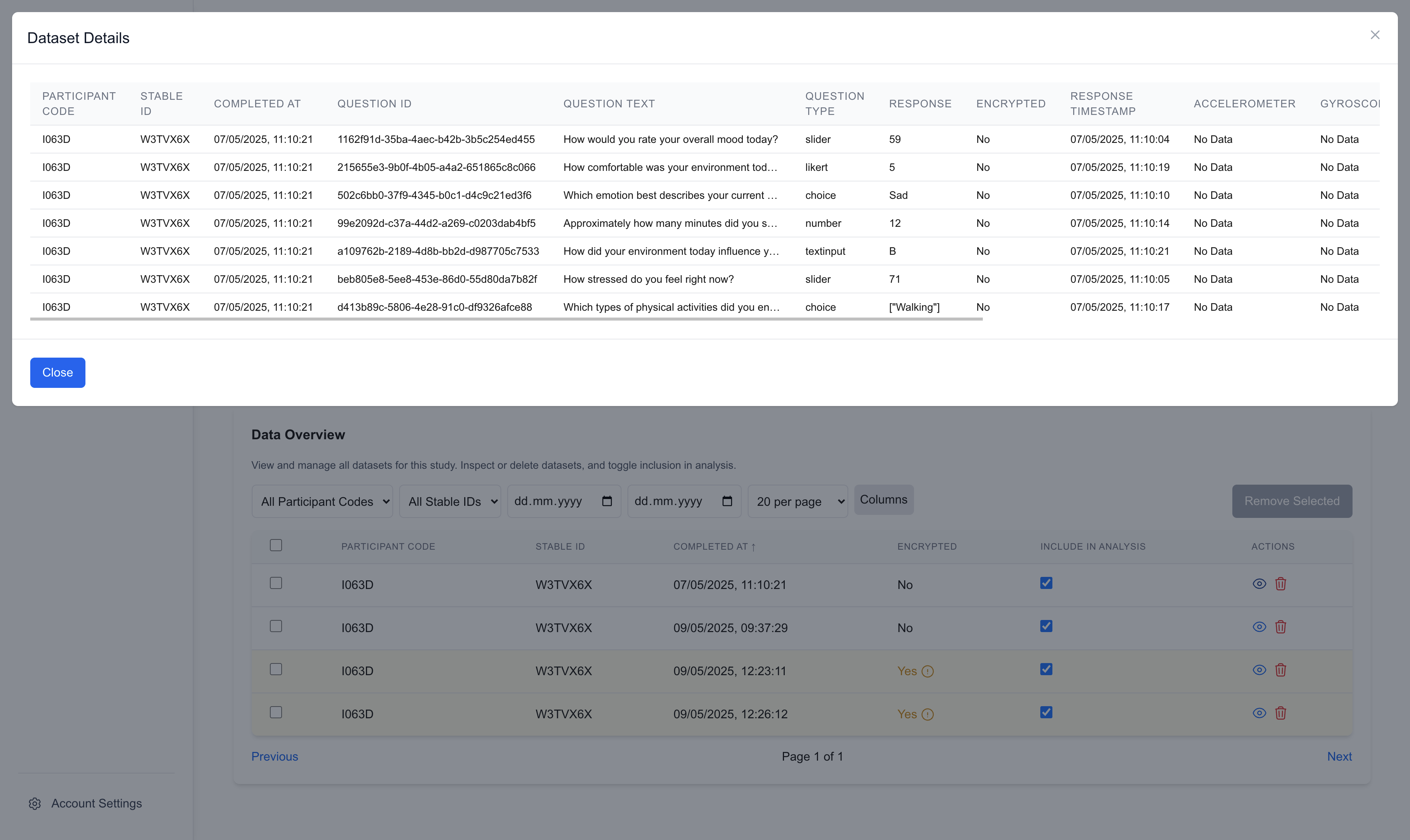
The Data Overview tab lists all datasets of the study in a table. The filters above the table select a participant code (All Participant Codes), a stable ID (All Stable IDs) and a date range of the completion time. A select box sets the number of rows per page (5 to 100, default 20). The Columns menu shows or hides the columns Participant Code, Stable ID, Completed At, Encrypted, Include in Analysis and Prompt Type.
The eye icon (Inspect Dataset) opens the Dataset Details dialog with one row per answer and the columns of the long-format export. The information icon next to a column heading shows the definition of that column.
Clearing the Include in Analysis checkbox excludes a dataset from the exports, the Response Analytics and Question Analysis tabs, the Data Quality tables on the study's Quality tab and the Data Explorer. The dataset itself is kept, and selecting the checkbox again includes it.
To delete datasets, use the trash icon (Delete Dataset) in a row, or tick several rows and select Remove Selected, then confirm in the Confirm Deletion dialog.
Response Analytics tab
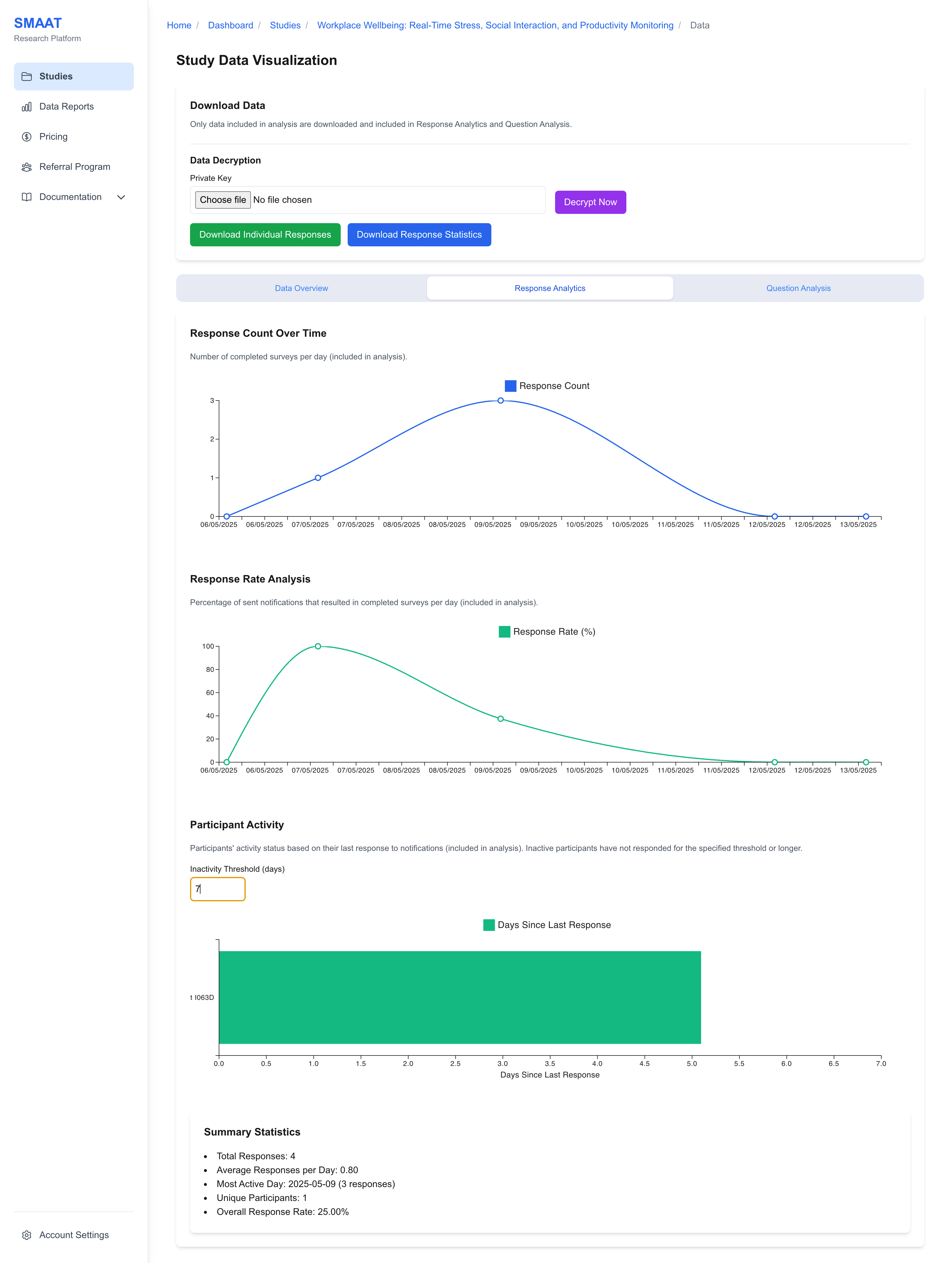
The Response Analytics tab summarises how many responses arrive and which participants have stopped responding. Days are calendar days in the time zone of your browser.
- Participants, Active, Inactive: counts of participants, split by the inactivity threshold described below.
- Response Count Over Time: the number of included datasets per day, by the completion time on the device. When the study has unprompted responses (self-initiated surveys, or surveys the phone started without a notification), a second line shows them.
- Response Rate Over Time (Basic plan and above): of the survey notifications sent on a day (status Sent, Delivered, Opened or Completed; announcements are not counted), the percentage that were answered with a response included in analysis. Both are counted on the day the notification was sent, so a response after midnight still counts for the day of its prompt, and the rate is at most 100 %. Unprompted responses are not part of the rate. A notification whose response was excluded from analysis or deleted is left out of the rate altogether: excluding a response removes its notification from both the answered and the sent count. Days are calendar days in the time zone of the browser showing the page. Days without notifications have no rate, and the overall rate reads “n/a” when no notification has been sent.
- Participant Activity (Basic plan and above): set the Inactivity Threshold (days) (default 1). The time since the last response is measured from the server arrival time of the participant's latest included response, or from the latest notification if there is no response, and shown in whole days; for a participant without responses the list reads “No responses yet” with the time since the last prompt. Participants at or above the threshold, and participants without any response history, are marked inactive in the Participant Detail list and in the Days Since Last Response chart.
- Summary Statistics: total responses, average responses per day, most active day, unique participants, overall response rate (answered of sent notifications over the whole study) and the number of unprompted responses.
Question Analysis tab
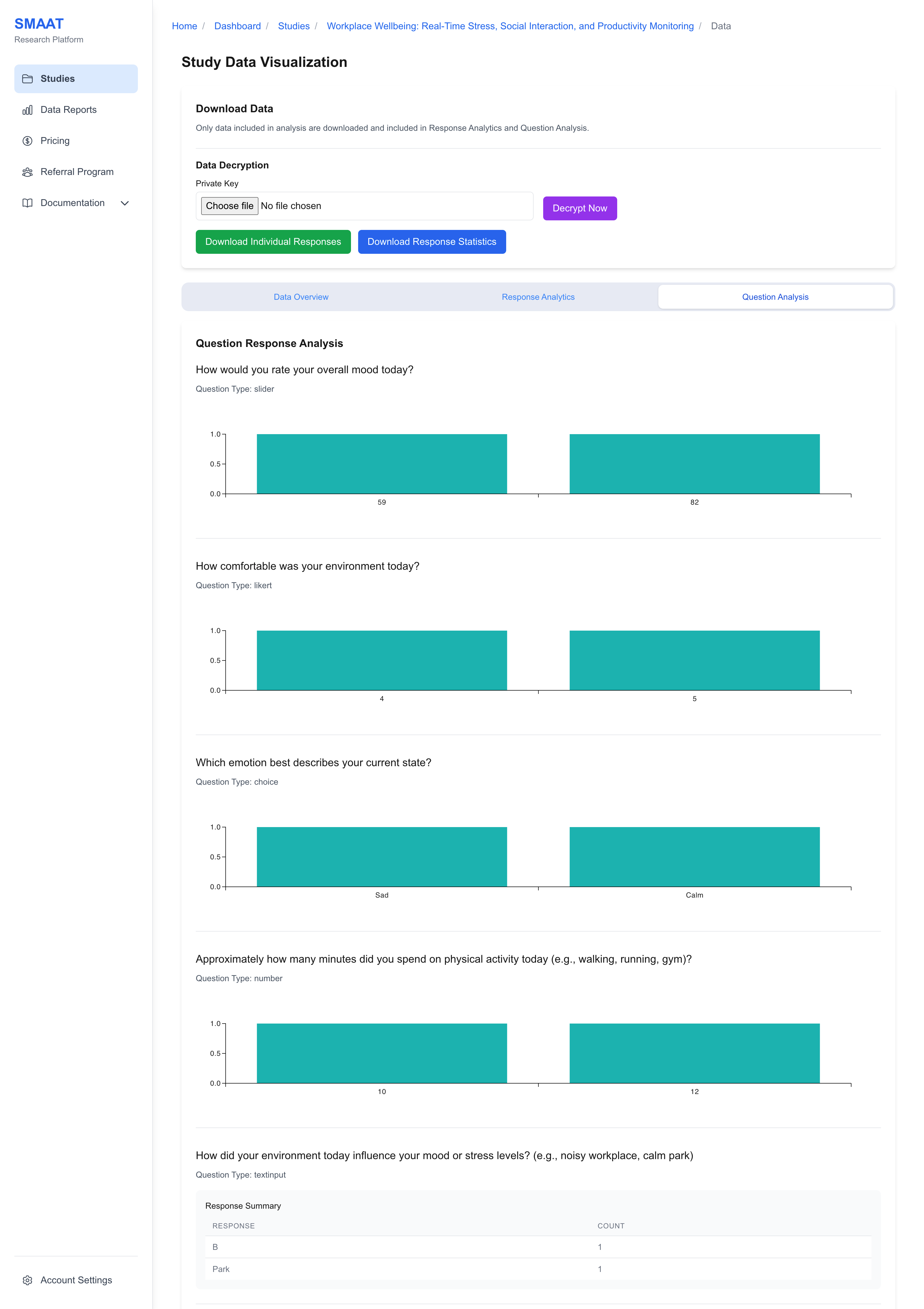
The Question Analysis tab shows the distribution of answers for each question, across all included datasets. The display depends on the question type:
- Choice and Likert questions, number and slider questions: a bar chart of answer counts.
- Text questions: a word-frequency display and a table of answers with their frequencies.
- Date questions: a line chart of answer counts by date.
- Drawing questions: all drawn curves overlaid, with the mean curve in bold.
- File uploads: images, video and audio are previewed in the page, and each file has a Download button.
While included datasets are still encrypted, the tab shows a notice instead of their answers. The notice names the step for the study's encryption option: Decrypt data (or Unlock vault to decrypt) under Download Data for end-to-end encryption, and the key file upload with Decrypt Now for a self-managed study key (see Decrypting encrypted data).
Next Steps
Related pages on working with study data: