Account, Security and Billing
This page covers the researcher account: its settings, two-factor authentication, the encryption vault, plans and subscriptions, the Funds page, the Referral Program and the Student Sponsorship.
Account settings
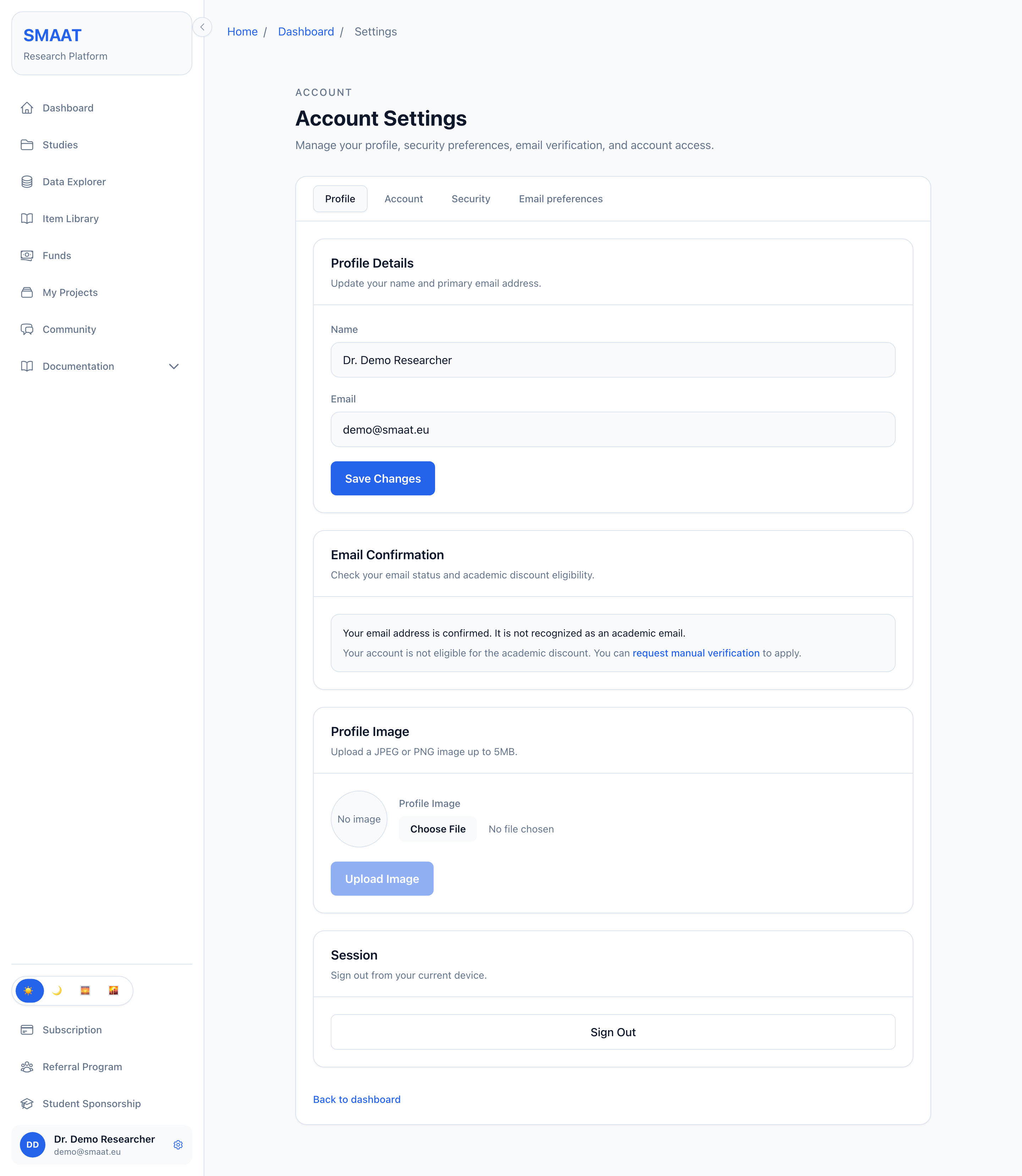
The account settings open from the row with your name and avatar at the bottom of the sidebar, at /dashboard/settings. The page has four tabs. The tab is part of the URL (?tab=profile, account, security or preferences).
Profile
- Profile Details: Name and Email, saved with Save Changes. A new email address must be confirmed again: a confirmation email is sent to it, and the academic status and discount are checked again when it is confirmed.
- Email Confirmation: whether the email address is confirmed, whether it is recognised as an academic address, and whether the 30% academic discount applies. An unconfirmed address has a Resend Confirmation Email button. For a confirmed address that is not recognised as academic, the link request manual verification asks SMAAT to check it.
- Profile Image: a JPEG or PNG image up to 5 MB, saved with Upload Image.
- Session: signs out on the current device.
Account
- Password: enter the Current Password and a New Password, then click Change Password.
- Two-Factor Authentication: see below.
- Delete Account: permanently removes the account, profile and settings after the current password is entered in the confirmation dialog. It cannot be undone. Studies and projects are not deleted with the account: the dialog lists the studies and projects the account still owns. Each study must first be deleted in its Settings → Danger zone, which erases its participants' data, and each project in its Settings → Delete project. Access to encrypted study data that the account granted to collaborators ends with it. A subscription that still renews is cancelled with the account: it is not renewed and stays active until the end of the paid period. A payment that is already overdue stays open, and Stripe may still try to collect it.
Security
The status of the encryption vault, the recovery code and an encryption self-test. See Encryption vault and recovery code.
Email preferences
A switch for Tips & updates from SMAAT, occasional product tips and updates. Account and security emails, such as the email confirmation and the password reset, are always sent and cannot be turned off.
Two-factor authentication
Two-factor authentication (2FA) adds a second step to signing in: a six-digit code from an authenticator app on your phone.
- Open account settings → Account → Two-Factor Authentication and click Enable 2FA.
- In the dialog "Set Up Two-Factor Authentication", scan the QR code with the authenticator app, or enter the manual secret code shown below it.
- Enter the six-digit code from the app in 2FA Code and click Verify Code.
From then on, the login page asks for the 2FA Code after the password, and the button reads Verify 2FA. The code is also requested after signing in with Google or ORCID. To turn 2FA off, click Disable 2FA and confirm with your password.
Encryption vault and recovery code
The encryption vault holds the account's encryption key. Studies that use end-to-end encryption, the default option for new studies, encrypt participant data so that it can be decrypted only through this key. SMAAT cannot read such data and cannot restore access to it.
How the vault is unlocked
- For accounts with a password, the vault is protected by the login password and unlocks automatically at login.
- Accounts created with Google or ORCID have no SMAAT password. They choose a separate encryption passphrase of at least 10 characters when setting up the vault, and enter it to unlock the vault.
- The recovery code is the backup for both. It is shown once, when the vault is created, and SMAAT cannot recover it.
Setting up the vault
Accounts created with email and password get a vault at sign-up, when the screen "Save your recovery code" appears. Other accounts set it up in account settings → Security:
- Click Set up encryption.
- Confirm your password, or, for Google and ORCID accounts, create and confirm an encryption passphrase, and click Continue.
- Copy or download the recovery code, type its last group to confirm, and click I've saved my recovery code.
Until a vault exists, the dashboard shows the banner "Secure your study data" with a link to this tab.
The Security tab
Once the vault exists, the tab shows "Encryption is active" with these entries: the vault status, whether the recovery code is confirmed, the fingerprint of the account key (public), and whether the vault is unlocked in the current session. Below are the following tools:
- Encryption self-test: encrypts a random value with the account key and decrypts it again. The test can also be run with the recovery code (Verify with recovery code) to check that the saved code works. Nothing is stored.
- Recovery code: Generate a new recovery code replaces the current code, which stops working immediately. The vault has to be unlocked first.
- Encryption history: a list of the account's encryption events, such as setting up the vault, confirming or regenerating the recovery code, and unlocking with the recovery code.
After a password reset
After a password reset, the vault is still protected by the previous password. The dashboard then shows the banner "Re-secure your encrypted data". In the Security tab, the vault can be unlocked with the previous password or with the recovery code and then re-secured to the current login password. If both the previous password and the recovery code are lost, data that is end-to-end encrypted to the account cannot be decrypted.
Plans and what they include
SMAAT has four plans: Free, Basic, Pro and Team. An Enterprise option with custom terms is available on request and includes everything in Team. Every account starts on the Free plan. The limits below are checked by the server. Limits that concern a study are taken from the plan of the study's author, so collaborators work within the author's plan.
| Limit | Free | Basic | Pro | Team |
|---|---|---|---|---|
| Studies | 1 | 2 | 10 | Unlimited |
| Participants per study | 5 | 300 | 5,000 | Unlimited |
| Surveys per study | 3 | Unlimited | Unlimited | Unlimited |
| Notification schedules per survey | 3 | Unlimited | Unlimited | Unlimited |
| Projects | 1 | 2 | 3 | Unlimited |
| Collaborators per project | 0 | 1 (view-only) | 3 (view-only) | Unlimited (role-based) |
The study count includes studies of every status, including drafts and archived studies. When a study has reached its participant limit, a person who tries to join sees the message that the study is not accepting new participants. When a survey or schedule limit is reached, the Study Builder shows a notice with a link to upgrade the plan.
Features that require a plan
| Feature | Minimum plan |
|---|---|
| Create a study from a template | Basic |
| Scheduled status changes (Settings → Schedule) | Basic |
| Compliance alerts (Engagement → Compliance Alerts) | Basic |
| Scheduled follow-up wave (Settings → Schedule) | Pro |
| Custom email and SMS branding (Settings → Messaging) | Pro |
| Data export: CSV (long format) | Free |
| Data export: JSON and Excel (.xlsx) | Basic |
| Data export: wide-format CSV and SPSS (.sav) | Pro |
| Data export: PDF report | Team |
Locked options show a lock or a notice such as "Pro plan required" with a link to the plans. The Data Explorer loads up to 100 rows on Free and 5,000 rows on Basic, and has no row limit on Pro and Team. This limit follows the plan of the person using the Data Explorer (see Data Explorer).
The Subscription page
Subscription in the sidebar opens /dashboard/pricing, headed "Pricing Plans". It contains:
- Your subscriptions, each with its plan, status, start and renewal dates and its limits. A cancelled plan is shown as "Canceled, active until" its end date. Manage Subscriptions opens the Stripe billing portal, where the payment method and the subscription are managed. The portal link appears after the first payment through Stripe.
- The plan cards with monthly and yearly prices and a Choose Plan button, which opens a Stripe checkout. Prices include the academic discount when it applies to the account.
- A feature comparison table. Clicking a row opens an explanation of the feature.
- For accounts without a paid plan, a link to the Student Sponsorship application.
Paying by invoice
Below the yearly price, or request invoice billing → opens a form for institutions that pay by invoice. It asks for the organisation name, the billing address and, optionally, a VAT number. Invoice billing is annual only, the invoice is due within 30 days, and it can be paid by card, SEPA bank transfer or wire transfer. The invoice is sent to the account's email address. For the Enterprise option, use Get in Touch on its card.
Funds: SMS credits and the payout wallet
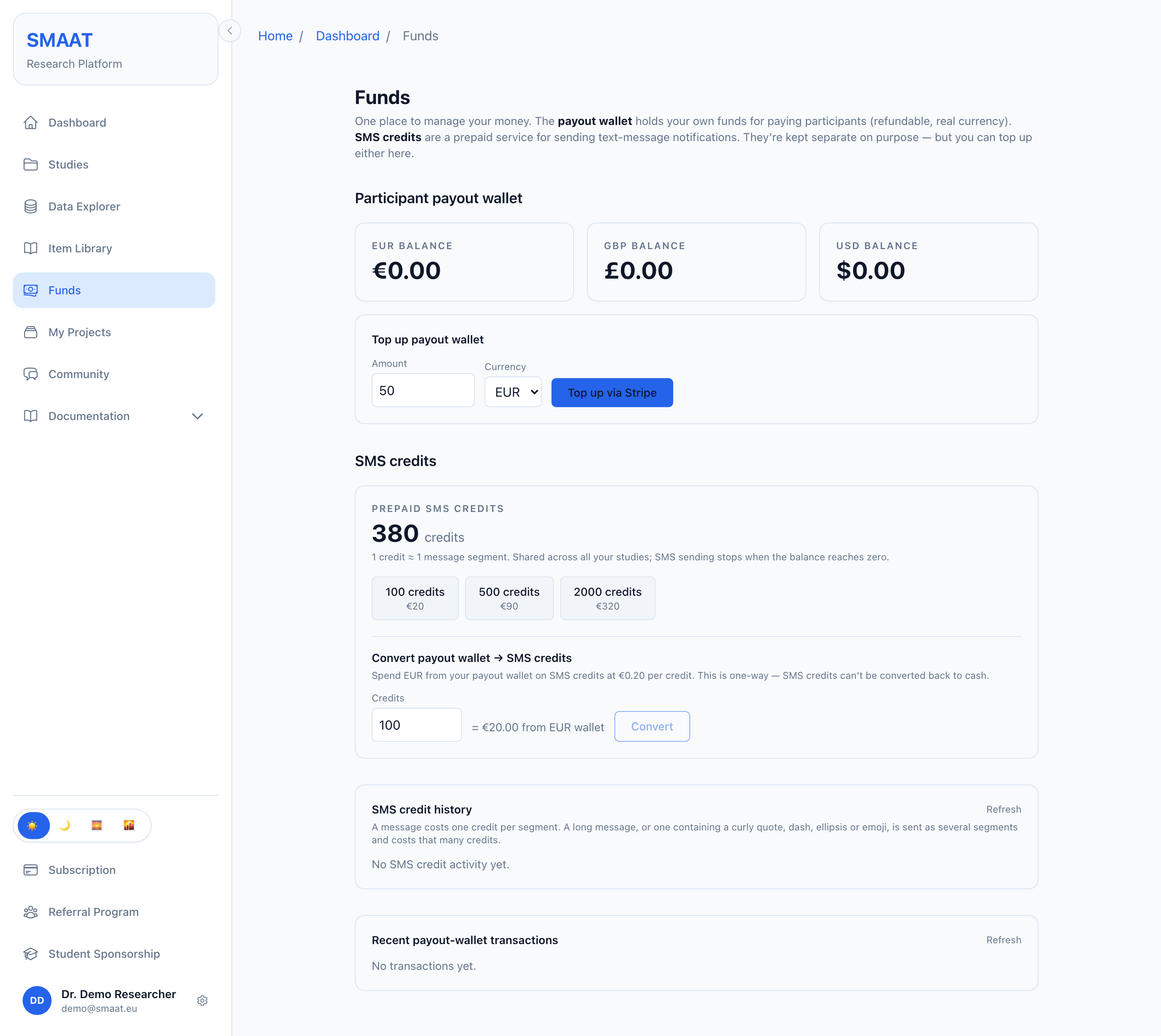
Funds in the sidebar opens /dashboard/funds. The page keeps two balances apart: the payout wallet, which holds your own money for paying participants, and SMS credits, a prepaid balance for sending text-message notifications.
Participant payout wallet
The wallet has one balance each in EUR, GBP and USD. Under Top up payout wallet, enter an Amount (at least 10), choose the Currency and click Top up via Stripe. Payments to participants are taken from this balance. A negative balance is shown in red with the note that payouts resume after a top-up. Recent payout-wallet transactions lists top-ups, participant payments, conversions to SMS credits, refunds and adjustments. How payments are configured for a study is described under Payments and Engagement.
SMS credits
SMS credits pay for notifications delivered by SMS. One credit pays for one message segment. A long message, or one that contains a curly quote, dash, ellipsis or emoji, is sent as several segments and uses that many credits. The balance is shared across all your studies, and SMS sending stops when it reaches zero.
- Packs: 100 credits for €20, 500 credits for €90 and 2,000 credits for €320, paid through Stripe.
- Convert payout wallet → SMS credits: buys credits from the EUR wallet balance at €0.20 per credit. The conversion is one-way; credits cannot be converted back to money.
- SMS credit history: purchases, messages sent (with the number of segments), granted credits and refunds, with the balance after each entry.
Each study's Notifications page also shows the SMS credit balance and an optional monthly cap for that study (see Notification Channels).
Referral Program
Referral Program in the sidebar opens /dashboard/referral, with the tabs Invitations, Dashboard and FAQ. On the Invitations tab, Generate New Referral Link creates a link to share with other researchers. A credit is added to your account when a person who signed up through your link confirms their email address, and 20 credits are added when that person starts their first paid subscription; each referred person counts once. One credit is worth €1. On the Dashboard tab, the referral counts and the credit balance are shown, and Redeem Credits converts a chosen number of credits into a discount code for a subscription purchase.
Student Sponsorship
Bachelor and Master students can apply for a free SMAAT subscription for a thesis or course research project. Student Sponsorship in the sidebar opens the application form at /dashboard/sponsorship. It asks for the degree level, institution, supervisor name and supervisor email, and a description of the research project. Field of study, country, planned sample size, planned duration, number of studies and other needs are optional. SMAAT may contact the supervisor to confirm the project. After Submit application, the decision is sent to the account's email address, and earlier applications and their status are listed at the top of the page.