Payments, Gamification and Compliance Alerts
This page describes the Engagement tab of the Study Builder: payments to participants, game elements in the app, and email alerts about participants with low compliance.
The Engagement tab
Open a study in the Study Builder and choose Engagement in the top row of tabs. It has three sub-tabs: Payments, Gamification and Compliance Alerts. All three features are off by default. Changes are stored with Save in the Study Builder header.
In this page, compliance means the share of survey notifications sent to a participant in a given period that the participant completed. Announcements are not counted.
Participant payments
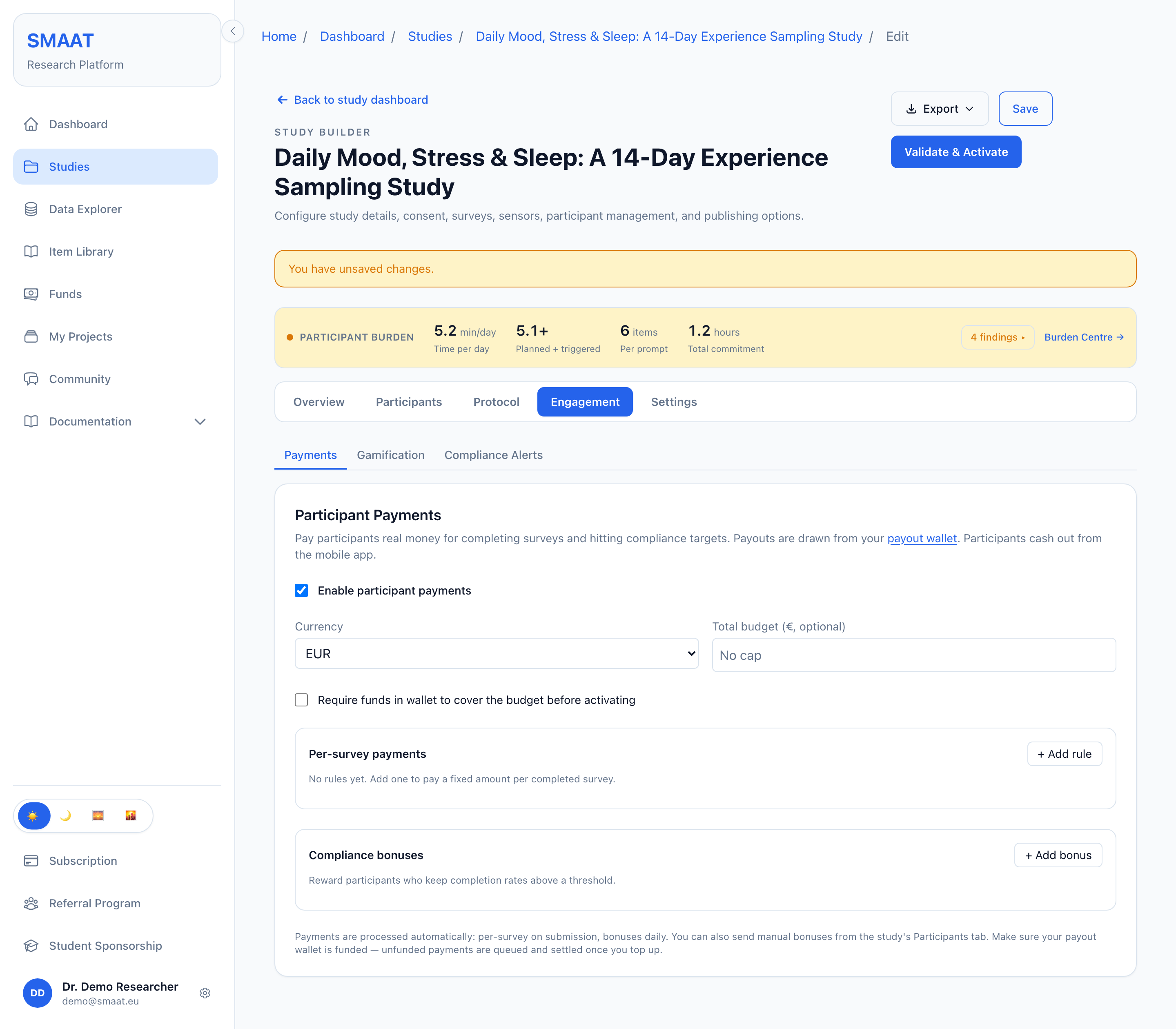
Participant payments pay participants money for completed surveys and for reaching compliance targets. Payments are drawn from the researcher's payout wallet, which is managed on the Funds page in the sidebar. Participants see their earnings in the Wallet of the SMAAT app and withdraw them there; a withdrawal requires a verified email address.
Tick Enable participant payments to show the settings:
- Currency: EUR, GBP or USD.
- Total budget (optional): the most the study may pay out in total. A payment that would exceed the budget is not made. Leave the field empty for no cap.
- Require funds in wallet to cover the budget before activating: the study can only be activated, or resumed after a pause, while the payout wallet holds at least the part of the total budget that has not been paid out yet. The option needs a total budget. The money is not set aside for the study.
Per-survey payments
+ Add rule adds a rule that pays a fixed amount for each completed survey. Each rule has:
- Amount per survey.
- Applies to: All surveys or one survey of the study.
- Max paid / day (optional): the number of submissions per participant that are paid on one calendar day (UTC).
- Lifetime cap / participant (optional): the most this rule pays one participant over the whole study.
- Only pay if answered within the compliance window: only submissions received within the availability window of their notification are paid. Surveys that participants start on their own count as within the window.
A per-survey payment is made when the response is submitted. Several rules can apply to the same submission; each pays once. If the payout wallet or the budget cannot cover a payment when the response is submitted, the payment is recorded as owed, with the amount it had then, and made (oldest first) after a top-up or a higher budget. Rules added or changed later do not pay for earlier submissions. Payments still owed for a study that is deleted are not paid automatically.
Compliance bonuses
+ Add bonus adds a bonus for participants whose compliance stays at or above a threshold. Each bonus has If ≥ rate (%), Window (days), Frequency and Amount. Compliance is computed over the window, counting back from the day of the check. The frequency determines when the check pays:
- Weekly: once per week, on Mondays (UTC).
- Monthly: once per month, on the first day of the month (UTC).
- One-time: once per participant, the first time the threshold is reached.
Bonuses are paid only to Enrolled participants of Active studies. A participant without any survey notification in the window receives no bonus. A bonus that the payout wallet cannot cover on its day is recorded as owed and paid after a top-up in the same way.
Manual payments
With payments enabled, the study's Participants page shows Send payment / bonus for each participant, and each participant's Details page has a Payments panel with the total paid and the list of payments. See Study Dashboard.
Gamification
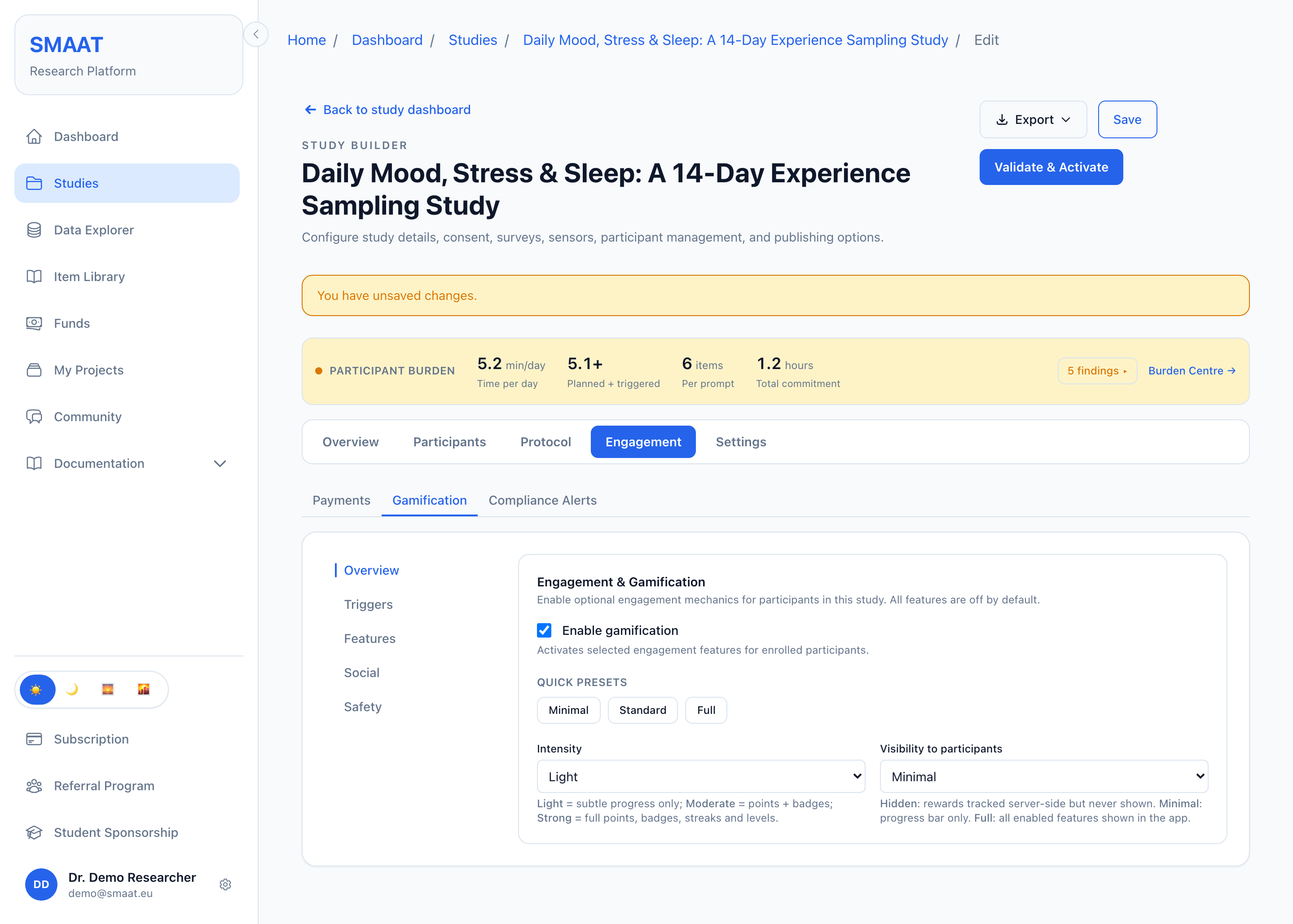
Gamification adds game elements, such as points, streaks and badges, to the participant's study screen in the app. These elements reward regular survey completion; they do not change the surveys or the schedule. Tick Enable gamification to activate the selected features for enrolled participants. The sub-tab has five sections: Overview, Triggers, Features, Social and Safety.
Under Quick presets, three buttons fill in a starting configuration. minimal turns on the progress bar only. standard adds points for completed surveys, streaks and badges. full adds levels and missions. A preset replaces the current gamification settings, which can then be edited.
Visibility to participants is Shown in the app or Hidden (silent mode). In silent mode, points, streaks, badges and missions are still tracked on the server, but the app shows no gamification to the participants of the study.
Points
With Enable points, participants earn points according to rules. Each rule has a Trigger, a number of Points, an optional Max / day (the number of times the rule awards points to one participant on one calendar day, UTC), and Apply to (any survey or specific surveys). The trigger Survey Completed awards points for each submitted survey. The trigger Survey On Time awards points when the survey is submitted within the "On time" window (minutes) after the notification. The trigger Specific Answer awards points when the answer to a question of the chosen survey meets the condition of the rule. Points add up over the study and feed into levels and the leaderboard.
Features
- Streaks: a count of consecutive days with at least one completed survey, with settings for a Grace period (hours) and for Streak freezes allowed. Each participant has the set number of freezes for the whole study. When a participant misses a day and has a freeze left, the freeze is used automatically and the streak continues; without one, the streak starts again from zero. With a grace period, a submission within that many hours after midnight counts for the previous day when that day had no submission.
- Badges: achievement badges chosen from five standard badges. First Survey: the first completed survey. 7-Day Streak: a streak of seven days. 80% Week: at least 80% of the survey notifications sent to the participant in one calendar week (Monday to Sunday, UTC) completed; announcements do not count. Midpoint: half of the study length (Participant Management) has passed since the participant enrolled. Study Complete: the participant's status is Completed, or the whole study length has passed. Badges are awarded when the participant next submits a survey, or when their streak grows overnight. An earned badge appears in the app's engagement hub with a full-screen celebration.
- Progress Bar: a bar on the study screen, with the scope Daily, Weekly (resets every Monday) or Entire study.
- Levels: named tiers that participants reach at point thresholds: Newcomer, Contributor, Engaged, Champion and Expert at 50, 150, 350 and 700 points, filled in when levels are switched on. Levels require points.
- Missions: named quests that bundle actions into one goal, for example "complete 3 surveys". Each mission has a title, a description shown to the participant, required actions (Survey Completed or Streak Extended, with a count and optional survey scope), bonus points and an optional reward badge.
Social features
The Social section holds the leaderboard, team goals and narrative mode. Social comparison can affect how participants respond, so these features stay locked until the researcher confirms an ethics acknowledgement in this section.
- Anonymous leaderboard: participants see ranks and point totals, without names. With the Scope Entire study the board ranks all enrolled participants; with Within group only it ranks only the participants with the same group code, and participants without a group code are ranked among the other participants without one. The setting Hide social comparison in the Safety section is on by default and hides the leaderboard; switch it off to show the leaderboard.
- Team / group goals: a shared point target for each group (Group goal (points)). Participants see their group's combined progress. This requires group codes (see Assignment to groups).
- Narrative mode: a guide character with a name, an avatar emoji and a greeting, and chapters. Each chapter has a message and unlocks when a condition is met (surveys completed, points earned or longest streak, each with a threshold). Unlocked chapters appear on the Story screen of the app.
Safety and research integrity
- No speed rewards: switches off the Survey On Time trigger for the whole study. This is recommended when response quality matters more than speed.
- Hide social comparison: hides the leaderboard (see above).
- Re-engagement bonus (points): points awarded the first time a participant completes a survey after three or more inactive days. 0 switches it off.
- Max game events / day: the most rewards (points, badges, levels, missions and chapters) a participant can receive on one day (UTC). Further submissions that day are still recorded and count toward badges and missions later, but earn no reward that day.
Compliance alerts
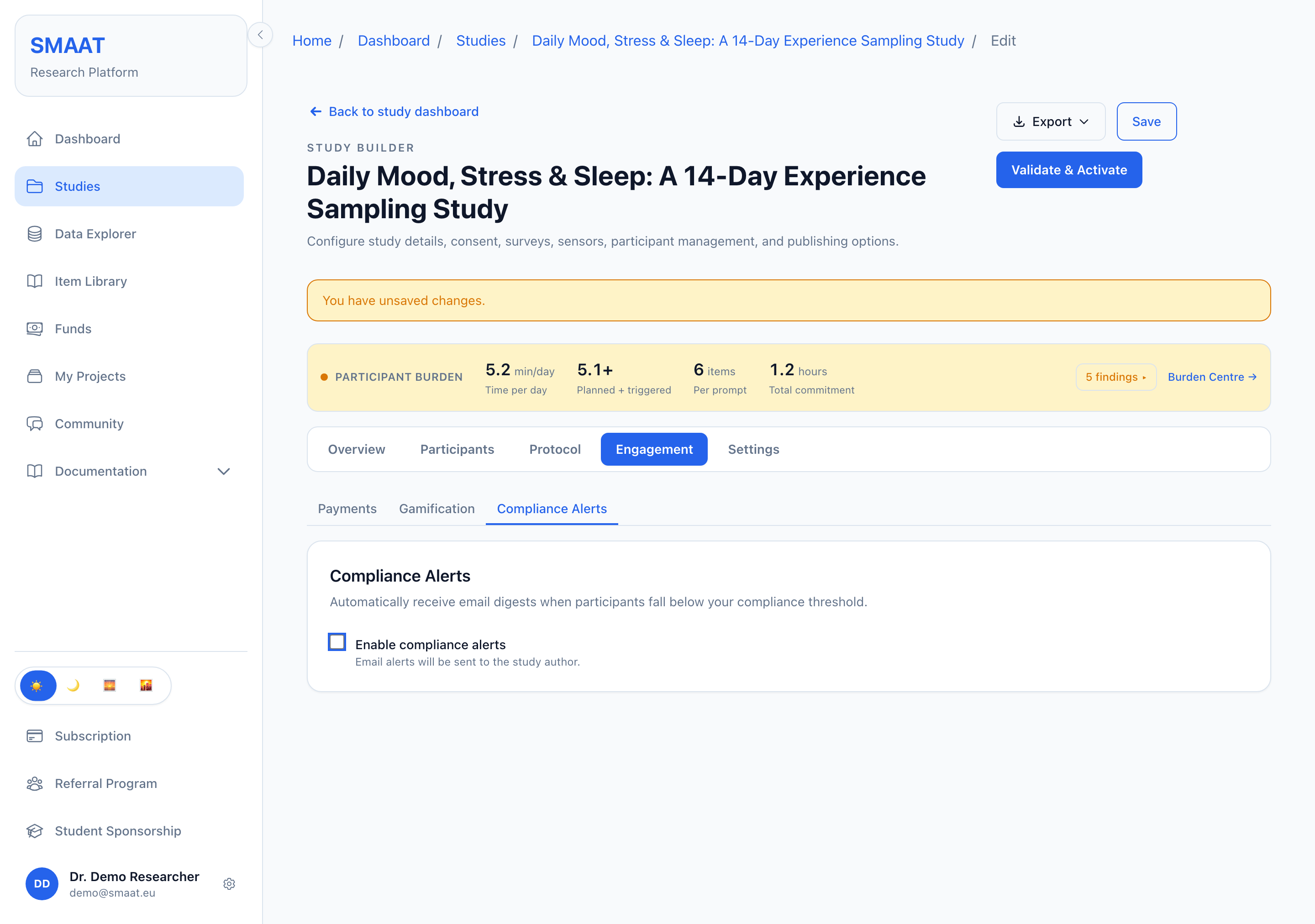
Compliance alerts send the study author an email digest that lists participants whose compliance has fallen below a threshold. They require the Basic, Pro or Team plan. On the Free plan the settings can be previewed with Preview settings but not enabled.
Tick Enable compliance alerts and set:
- Alert threshold: a compliance rate between 0 and 100% (in steps of 5); participants below it are listed.
- Look-back window: the last 7, 14 or 30 days.
- Minimum notifications before alerting: participants who received fewer survey notifications in the window are left out, which avoids alerts early in the study.
- Alert frequency: Daily digest (every morning) or Weekly digest (Mondays).
A summary sentence under the settings repeats the current rule. Only Enrolled participants of Active studies are checked.
The Alert threshold also sets which participants the study dashboard shows as at risk, and which participants an announcement to the at-risk audience reaches. See Study Dashboard.